
ACCOUNT SETUP
Set up FFIC Entra sign-in
One invitation. Follow your inbox. Sign in securely.
Your verified Entra sign-in connects automatically to your existing portal account using the same email address. There is no separate account-linking step.
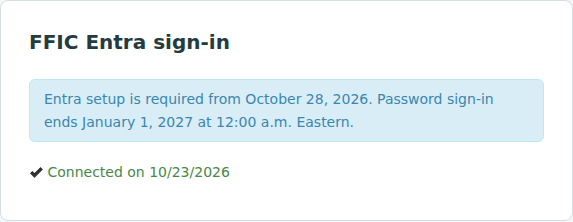
Wednesday, October 28, 2026: Entra setup is required before you can use the rest of the portal. You can sign in with your current password to complete setup, but you cannot postpone it.
January 1, 2027 at 12:00 a.m. Eastern Time: username-and-password sign-in ends. Use FFIC Entra to sign in.
Before you begin
- Use the email address on your existing individual portal account throughout setup. Do not use a shared account or shared email address.
- Make sure you can open that inbox.
- Have your phone available for any Microsoft verification prompts.
Farmers Fire employees should use their existing Farmers Fire Microsoft account. The invitation steps below are for agency users.
Start setup in the portal
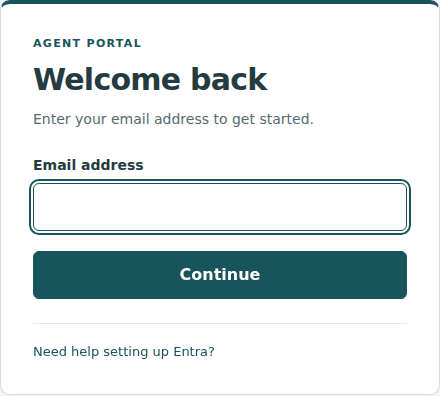
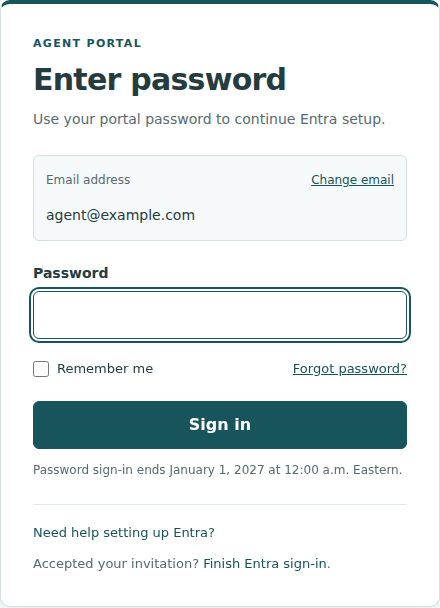
Before January 1, 2027, open the portal sign-in page and enter your portal email address, then select Continue. If your portal account is connected to Entra, you’ll continue to Microsoft sign-in. Otherwise, enter your current portal password on the next screen. If you entered the wrong email, select Change email. The setup popup explains what to do next. You can also open Entra setup directly after signing in.
From October 28, users who have not completed setup are taken to a required setup page. Other portal pages remain unavailable until setup is complete.
Request your invitation
Check the email address shown, then select Email me an invitation. You do not need an existing Farmers Fire Entra account, and you do not need to choose between account setup paths.
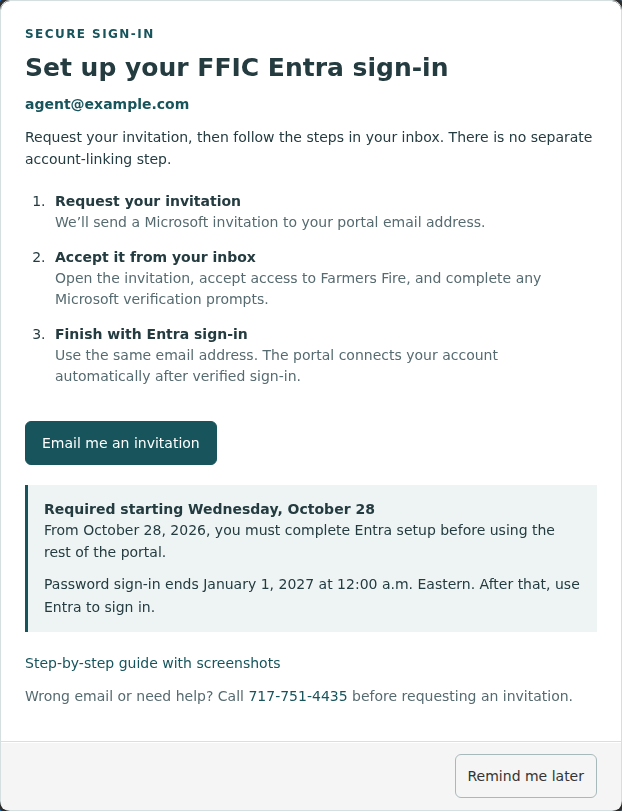
If the email address is wrong, contact Farmers Fire before requesting an invitation.
Follow the invitation in your inbox
- Open the Microsoft invitation sent to your portal email address.
- Follow the invitation link and use that same email address.
- Accept access to Farmers Fire and follow the instructions Microsoft displays.
- Complete any requested verification or multifactor authentication setup.
Microsoft’s screens and verification methods can vary. Follow the prompts shown for your own account. Never share passwords, verification codes, or setup QR codes.
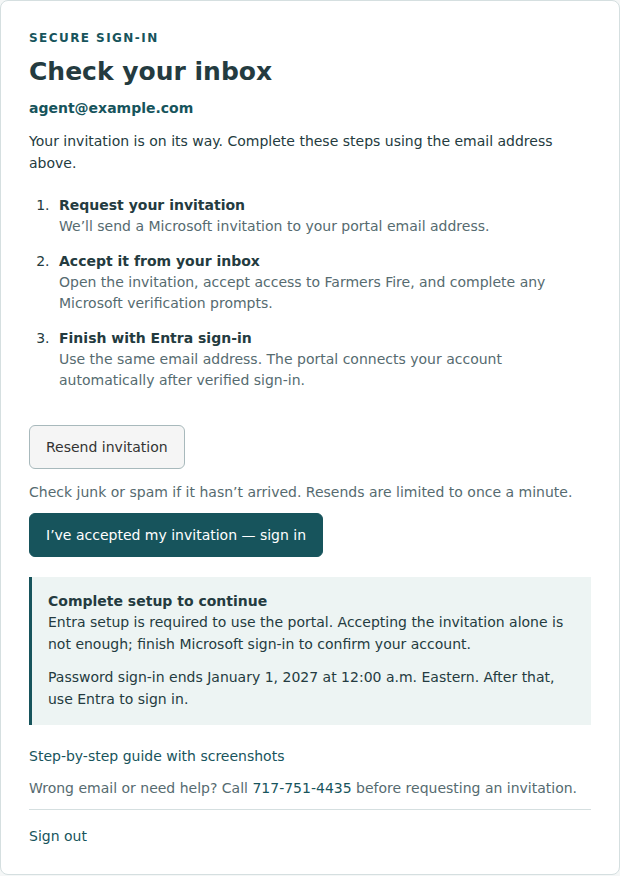
No email? Check junk or spam. You can select Resend invitation; requests are limited to once a minute. If it still does not arrive, contact Farmers Fire.
Finish sign-in and confirm
Continue from the invitation into Microsoft sign-in. If you return to the portal’s setup page after accepting, select I’ve accepted my invitation — sign in. Use the same email address as your portal account.
Once Microsoft verifies your sign-in, the portal connects your matching account automatically. You can then continue using the portal. Accepting the email invitation alone does not finish this sign-in check.
Next time you sign in
Enter your email on the portal login page and select Continue. When setup is complete, you’ll go directly to Microsoft Entra sign-in. From January 1, 2027, all sign-ins use Entra; the password step is no longer available.
Need help?
Why is the email field blank?
Enter your portal email address and select Continue. The portal may fill it in when it already has a verified Entra session for you. Being signed in to Microsoft elsewhere does not guarantee that this field will be filled in.
I accepted the invitation but still see setup
Finish Microsoft sign-in using the same email address as your portal account. If setup remains incomplete, contact Farmers Fire with your email and the error message.
Microsoft selected the wrong account
Choose another account when prompted and use your portal email address. You can also retry in a private browser window.
I have not completed setup and password sign-in has ended
Open your invitation email and complete the steps, then use FFIC Entra sign-in. If you do not have an invitation or cannot complete it, contact Farmers Fire for assistance. Password reset does not restore password sign-in after the cutoff.
I cannot complete verification
Contact your agency’s IT support for an agency-managed Microsoft account, or Farmers Fire for portal access or invitation problems.
For more sign-in and transition questions, see the Agent Access and Login FAQ.
Contact Farmers Fire
Call 717-751-4435. Have your portal email and error message ready. Do not send passwords or verification codes.